USER GUIDE
How to use InvoDub
From installing to posting your first dubbed video — step by step, with screenshots.
Video tutorial
YouTube embed added later
1
Install
- Download the zip from the Download page.
- Right-click it → Extract All.
- Double-click Install InvoDub. If Windows says "protected your PC", click More info → Run anyway.
- Open InvoDub from the Desktop icon. Your 3-day trial starts.
Needs Windows 10/11 and about 8 GB of free space. Everything is included — nothing else to download.
2
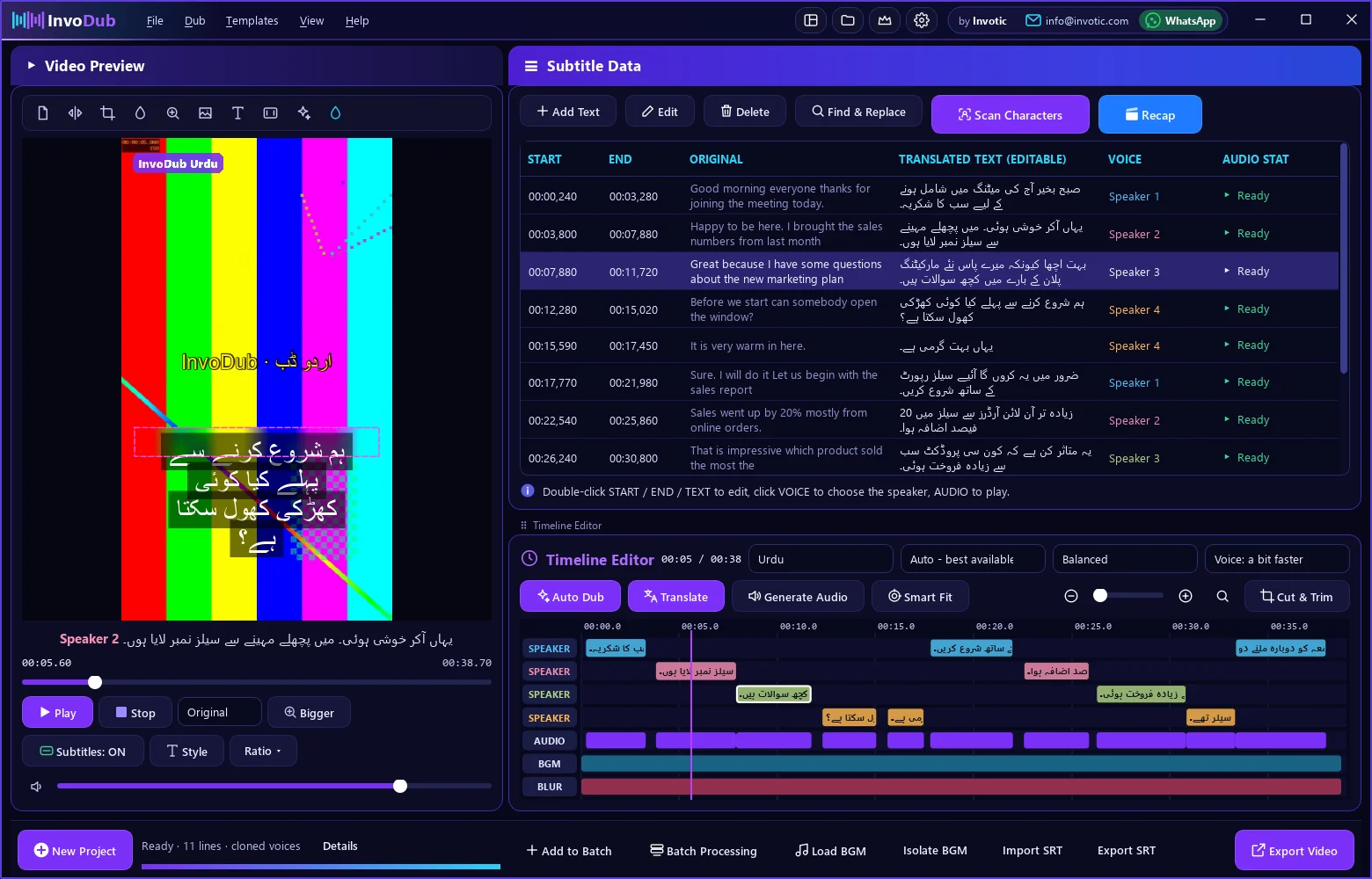
Your first dub
- Click the video area (or New Project) and choose your video.
- Pick the target language in the Timeline bar (e.g. Urdu).
- Press Auto Dub (Ctrl+Shift+D). InvoDub finds the speakers, translates and makes the voices.
- Press Play and switch the preview to Dubbed to listen.
3
Speakers & voices
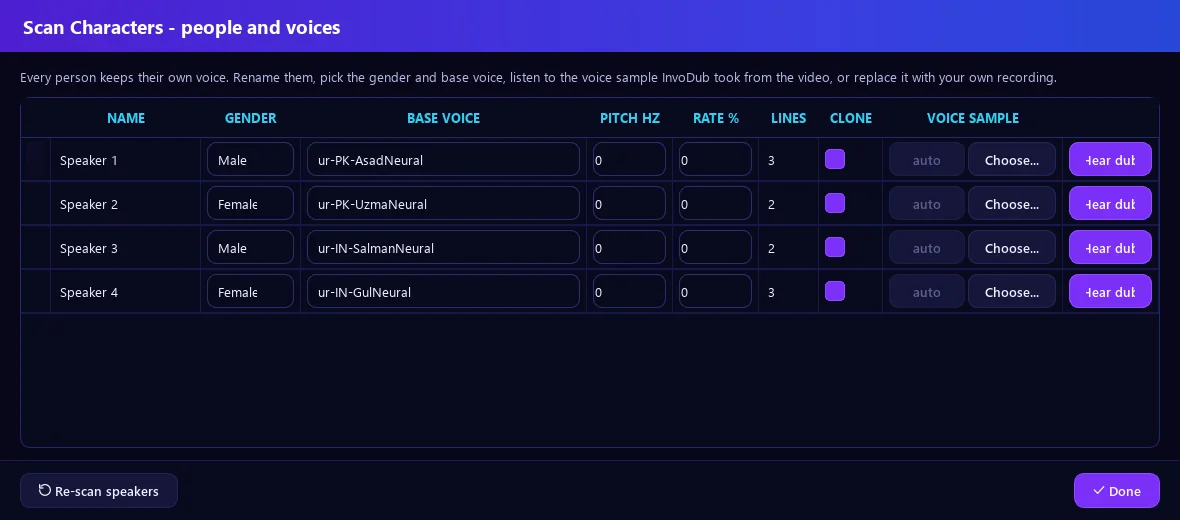
- Open Scan Characters to see every speaker found.
- Rename them, set male / female, or pick another voice.
- Voice copying makes each speaker sound like the original person.
A speaker needs about 3 seconds of clear speech for a good voice copy.
4
Edit translations
- Double-click any line in the table to change the text.
- Click the voice name to give the line to another speaker.
- Press Generate Audio to re-voice changed lines. InvoDub remembers your corrections for next time.
5
Subtitles, logo, blur
- Subtitles: ON and Style under the video — choose font, colour and position.
- Add your logo or text from the tool strip above the video; drag to place it.
- The cyan Auto Blur button hides old watermarks and burned-in captions.
6
Export
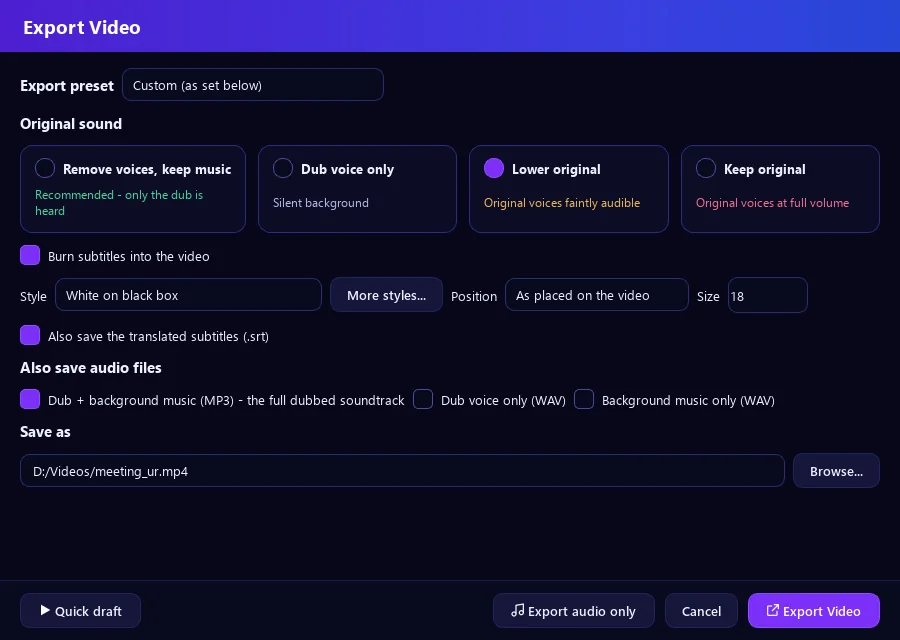
- Press Export Video.
- Pick a preset: TikTok / Reels, Shorts, YouTube or Original.
- Use Quick draft first to check, then the full export.
7
Many languages & batch
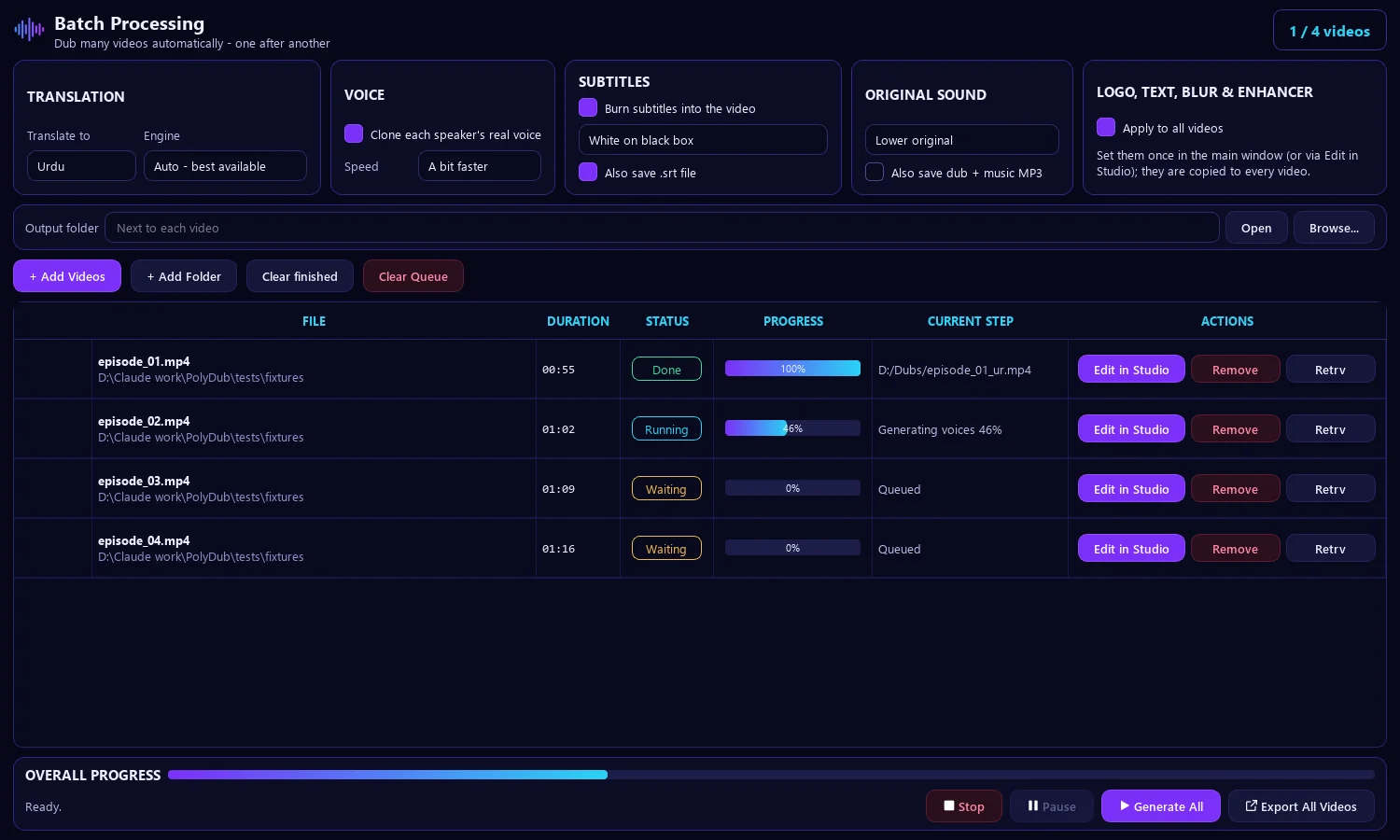
- Dub → Dub into many languages: tick languages, get one video per language.
- Batch Processing: add many videos and press Generate All.
8
Problems & fixes
- No dubbed voice? Press Generate Audio, then export again.
- Wrong number of speakers? Scan Characters → set the count → re-detect.
- Trial ended? Click Buy License, send your Machine ID on WhatsApp.
- Still stuck? info@invotic.com or WhatsApp.